IPRA Assignments and Tasks
Assignments Tab (Records Supervisor View)
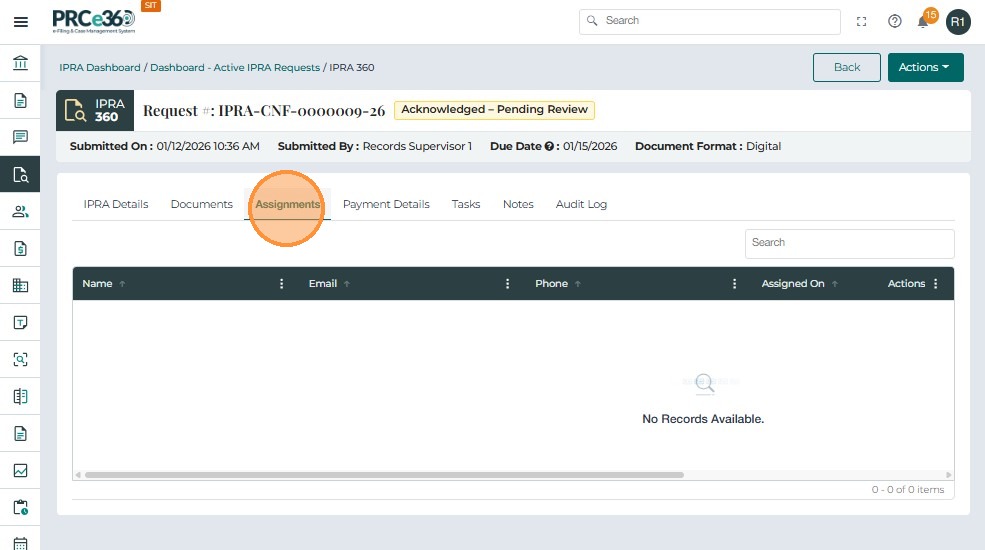
The Assignments tab allows staff users to view IPRA requests that have been specifically assigned to them by a supervisor.
-
When a legal supervisor assigns a request, the assigned staff member can see the record in this tab.
-
No data appears here until an assignment is made.
Table Fields
| Field Name | Description |
|---|---|
| Name | Name of the user assigned to the request (typically the logged-in staff). |
| Email address associated with the assigned user account. | |
| Phone | Contact number (if available in the user's profile). |
| Assigned On | Date and time when the assignment was made. |
| Assigned By | Name of the supervisor who assigned the request. |
| Actions | Available options (e.g., view or manage assignment). |
Tasks Tab
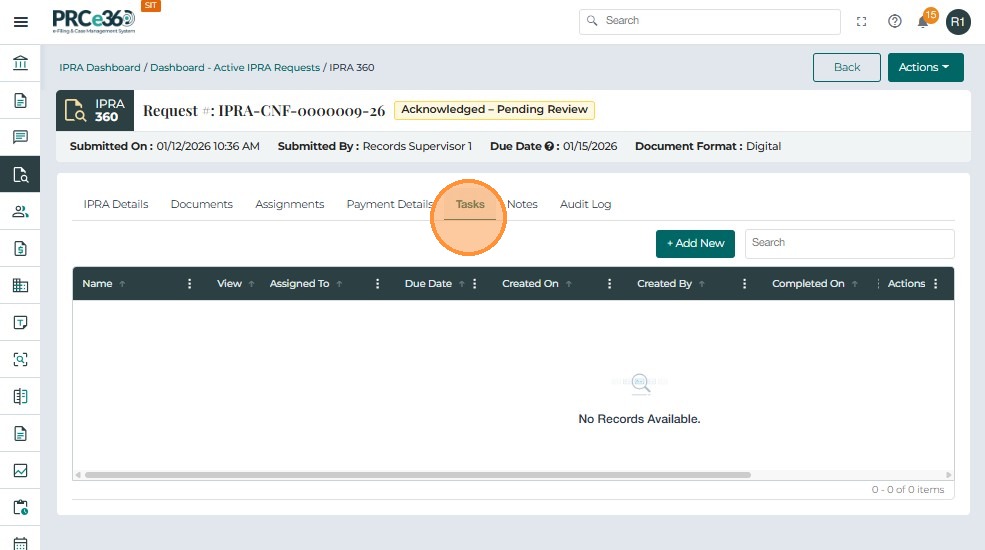
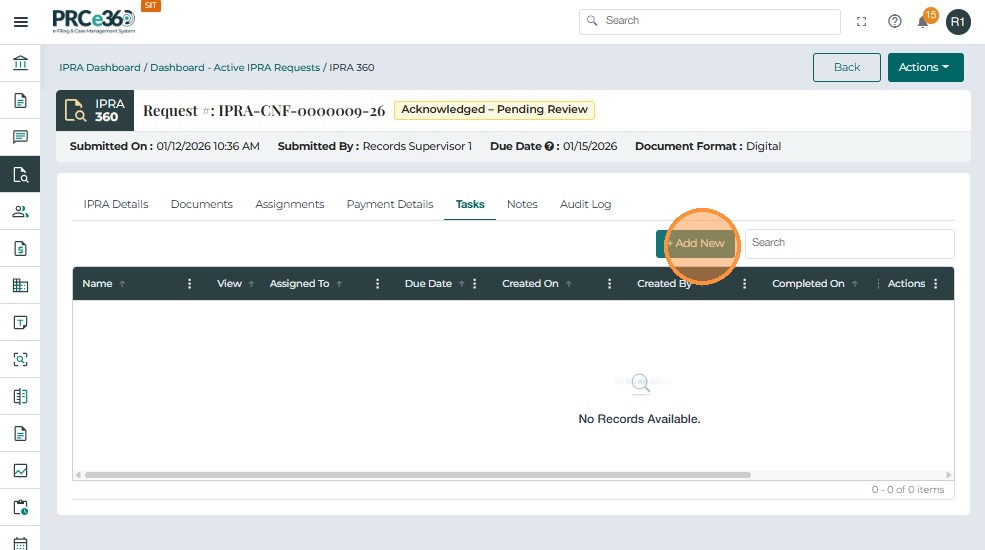
The Tasks tab allows users to create and manage action items related to an IPRA request. It supports tracking of activities such as document collection, review, redaction, and response preparation.
- Navigate to the Tasks tab in the IPRA Case.
Tasks Table Fields
| Field Name | Description |
|---|---|
| Name | Title of the task. |
| Assigned To | User assigned to complete the task. |
| Due Date | Deadline for completing the task. |
| Created On | Date when the task was created. |
| Created By | User who created and assigned the task. |
| Actions | Options to edit or delete the task (where permitted). |
Create a Task
-
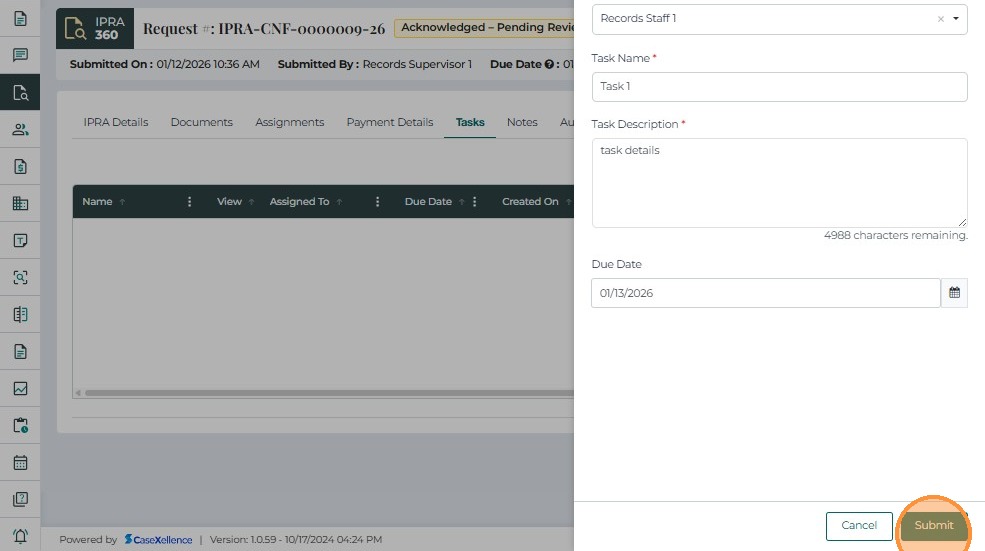
Click + Add New to open the Create Task form.
-
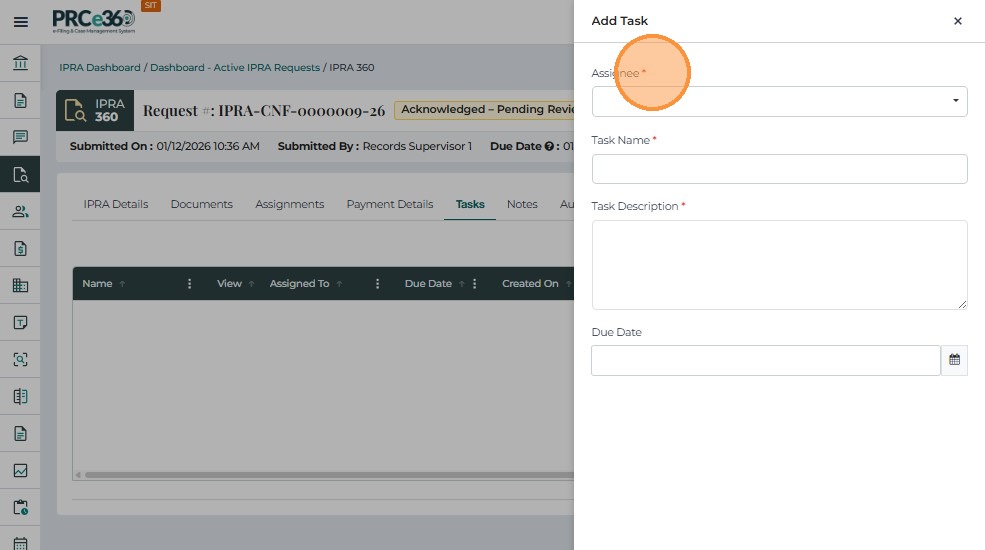
Enter the following details:
-
Assignee – Select the user responsible for the task (e.g., Records Staff 1).
-
Task Name – Provide a short, descriptive title.
-
Task Description – Describe the required action (e.g., "Gather related case documents for redaction").
-
Due Date – Select the date the task must be completed.
-

-
Click Submit to save the task.
-
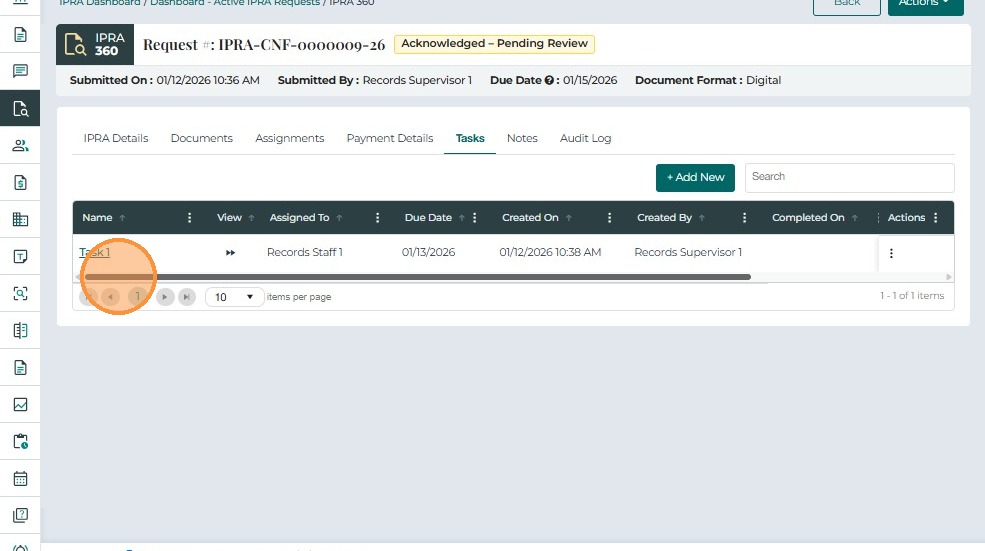
The task appears in the table with all relevant details, and the assigned user receives a notification.